
Getting Started
The goal of this guide is simple: get one NinjaTrader chart into ChartGPT and receive one successful AI analysis. You can explore the other tabs after that first result works.
Before you start
Section titled “Before you start”You need:
- NinjaTrader 8 on the Windows computer where you trade
- your ChartGPT TN key, sent to your trial or purchase email address
- at least one analysis-provider API key: OpenAI, OpenRouter, Anthropic, or Google Gemini
- optionally, a Brave Search API key for web-search context and a Replicate API token for supported audio transcription
1. Download ChartGPT
Section titled “1. Download ChartGPT”Choose the path that applies to you:
- Trial: Open the email with the subject Your ChartGPT trial is ready — install it in NinjaTrader and click Download ChartGPT. The private download link is already in that email; you do not need to find it in the portal.
- Lifetime customer: Sign in to the Trading Neural customer portal and open Downloads.
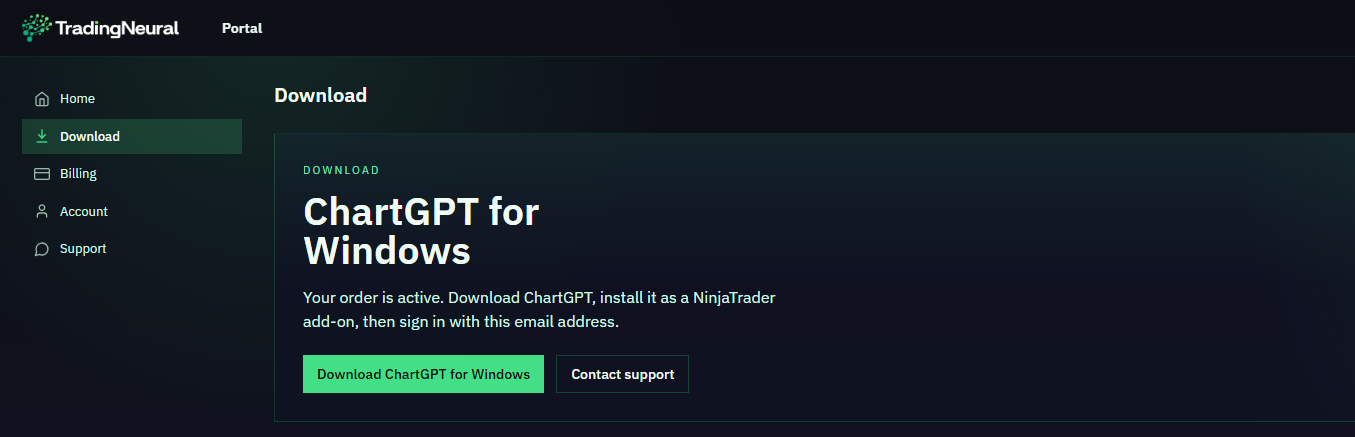
Close NinjaTrader before running the installer. Download links are private and may expire, so use the newest link sent by Trading Neural. If a link has expired, request a fresh one or contact support.
2. Install ChartGPT and add the indicator
Section titled “2. Install ChartGPT and add the indicator”-
Run the ChartGPT installer and complete the installation.
-
Launch NinjaTrader 8.
-
Open the chart you want to analyze.
-
Open the chart’s Indicators window.
-
Find the Trading Neural folder, select ChartGPT, and add it to the configured indicators.
-
Click OK or Apply.
-
Wait for the ChartGPT panel and its controls to appear on the chart.
3. Sign in with your TN key
Section titled “3. Sign in with your TN key”-
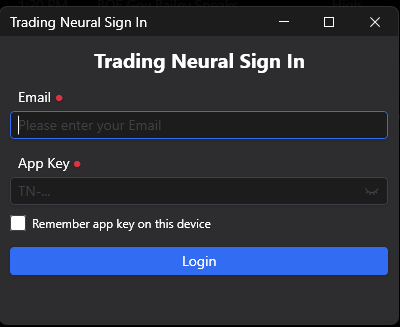
Click Login in the lower-right ChartGPT controls.
-
Enter the same email address that received the trial or purchase key.
-
Paste the TN key from your email. New keys begin with
TN-. -
Optionally select Remember app key on this device.
-
Click Login and wait for the success message.
If login fails, copy the key again without adding spaces. Confirm that you are using the TN key—not a provider or integration key.
4. Configure AI providers and integrations
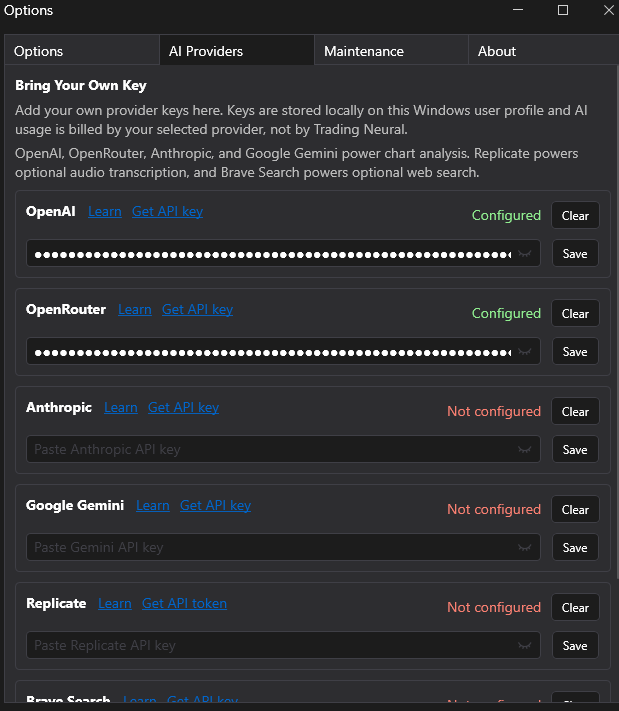
Section titled “4. Configure AI providers and integrations”The AI Providers tab contains all six supported integrations. Configure the services you want to use. You need at least one analysis provider to generate a response; Brave Search and Replicate extend specific workflows.
| Provider or integration | Use it for | Key page |
|---|---|---|
| OpenAI | text, vision, speech-to-text, and text-to-speech | OpenAI API keys |
| OpenRouter | text and vision models routed through OpenRouter | OpenRouter API keys |
| Anthropic | Claude text and vision models | Anthropic API keys |
| Google Gemini | Gemini text and vision models | Google AI Studio API keys |
| Brave Search | optional web-search context for supported analysis workflows | Brave Search API keys |
| Replicate | optional audio transcription with supported models | Replicate API tokens |
-
Open Options from the lower-right ChartGPT controls.
-
Open the AI Providers tab.
-
Create or copy the API key or token for each service you want to use from the table above.
-
Paste the key into the matching provider field in ChartGPT.
-
Click Save and confirm that the provider shows as configured.
-
For OpenAI, OpenRouter, Anthropic, or Google Gemini, return to an analysis tab and select that provider and one compatible model.
Enable Brave Search
Section titled “Enable Brave Search”-
Create a key in the Brave Search API dashboard.
-
In ChartGPT, open Options → AI Providers.
-
Paste the key in the Brave Search field and click Save.
-
Return to a supported analysis tab and turn on Web Search when you want current web context included with the chart analysis.
Brave Search supplies the web results. The analysis provider and model you select still interpret those results together with the ChartGPT context.
Enable Replicate transcription
Section titled “Enable Replicate transcription”-
Create a token in your Replicate account.
-
In ChartGPT, open Options → AI Providers.
-
Paste the token in the Replicate field and click Save.
-
Open the main Options tab, choose Replicate as the speech-to-text provider, and select a supported transcription model.
Replicate is used for supported audio transcription workflows. It does not replace the analysis provider selected in ChartGPT’s text or vision tabs.
5. Run your first chart analysis
Section titled “5. Run your first chart analysis”Use a familiar chart for this check. Do not start by testing every feature.
-
Open the Vision tab in ChartGPT.
-
Click Take Screenshot so ChartGPT captures the chart currently in front of you.
-
Select the provider you configured and a vision-capable model.
-
Paste this first prompt:
Describe the current chart structure, identify the most important level, explain what would invalidate the setup, and name the strongest risk. Use only what is visible in the supplied chart.
-
Click Analyse Image.
-
Wait for the response. If the model describes the chart you supplied, the complete ChartGPT workflow is working.
After this succeeds, try Chart Data, OHLCV, Volume, VWAP, or Blend to send structured NinjaTrader data instead of—or alongside—a screenshot.
If the first analysis does not work
Section titled “If the first analysis does not work”Use the error message to identify the failed step:
| What you see | What to check |
|---|---|
| Login or license error | Confirm the purchase/trial email and TN key. |
| Provider not configured | Open Options → AI Providers and save the matching provider key. |
| No models appear | Confirm the provider key and account access, then refresh the provider models. |
| Billing, quota, or rate-limit error | Open the selected provider’s usage or billing dashboard. |
| Vision/model compatibility error | Select a model that accepts image input. |
| Web Search is unavailable | Save a Brave Search API key under Options → AI Providers. |
| Replicate transcription fails | Save the Replicate token, then confirm the speech-to-text provider and model under Options. |
| ChartGPT is not visible on the chart | Add Trading Neural → ChartGPT from the chart’s Indicators window. |
If you are still blocked, reply to the trial or purchase email. Include the step you reached, the exact error text, your ChartGPT version, and a screenshot with all private keys hidden.
What to explore next
Section titled “What to explore next”Once the first analysis works:
- read AI Providers and Models for provider and model guidance
- use Chart Data to send bars and indicator values
- use Vision for screenshots and drawing context
- use Blend to combine OHLCV, volume profile, VWAP, and calendar data
- save effective prompts in the Prompt Library