
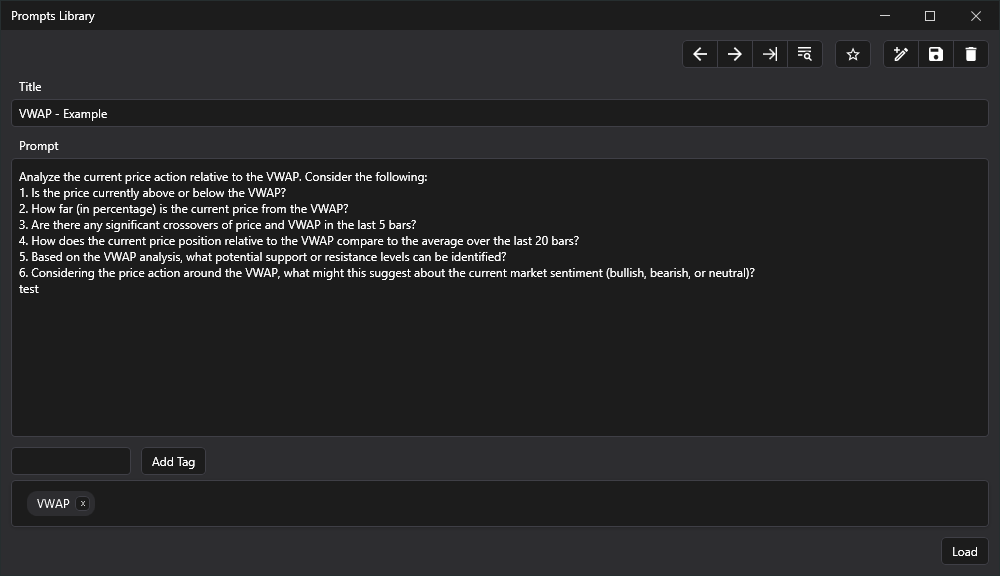
Prompt Library Window
The Prompt Library is a powerful tool designed to help you manage, organize, and utilize your prompts effectively. This window provides a centralized location for storing, editing, and retrieving prompts, enhancing your workflow and productivity.
Acess Prompt Library
Section titled “Acess Prompt Library”You can access your Prompt Library via the icon below:

Features
Section titled “Features”Create and Edit Prompts
Section titled “Create and Edit Prompts”- Write new prompts directly in the Prompt Library window
- Edit existing prompts to refine your strategies
Organize with Tags
Section titled “Organize with Tags”- Add tags to your prompts for easy categorization
- Use tags to quickly find relevant prompts
Search Functionality
Section titled “Search Functionality”- Click the search icon to open the search window
- Filter prompts by instrument name, time frame, favorites, and tags
- Easily locate the exact prompt you need
Favorite Prompts
Section titled “Favorite Prompts”- Mark your most useful prompts as favorites for quick access
Save Responses as Prompts
Section titled “Save Responses as Prompts”- Right-click in the response area to save any response as a new prompt
Load Prompts
Section titled “Load Prompts”- Use the search functionality to find your desired prompt
- Click the “Select” button to choose the prompt
- The selected prompt will appear in the Prompt Library window
- Click “Load” to transfer the prompt to the prompt box for immediate use
Why Use the Prompt Library?
Section titled “Why Use the Prompt Library?”The Prompt Library is your secret weapon for effective LLM interactions. By providing a systematic way to create, manage, view, and search your prompts, it helps you:
- Maintain a collection of your most effective prompts
- Quickly find and reuse successful strategies
- Iterate and improve your prompts over time
- Organize your workflow for maximum efficiency
With the Prompt Library, you can focus on crafting the perfect prompts and let the tool handle the organization and retrieval, streamlining your entire process.