
Calendar Tab
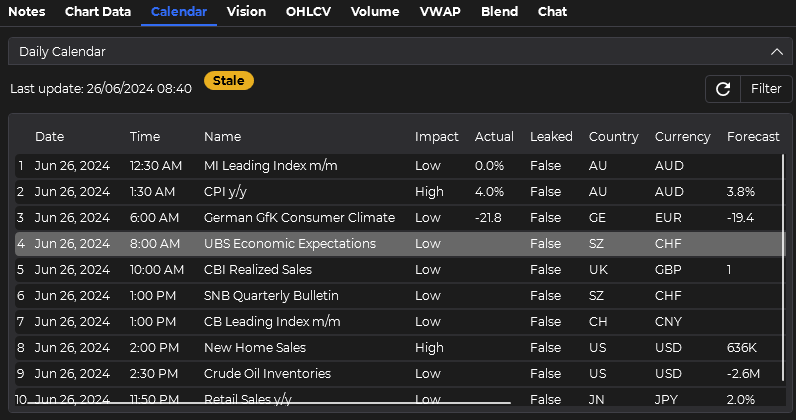
The Calendar tab is designed to keep you informed about economic events that can impact market conditions. You can filter calendar data and send the displayed events into an AI analysis request with your selected provider and model.
Key Features
Section titled “Key Features”Real-Time Event Display
Section titled “Real-Time Event Display”- View up-to-the-minute economic events as they unfold.
- Customizable columns allow you to tailor the display to your specific needs.
- Your column preferences are automatically saved for future sessions.
Customization Options
Section titled “Customization Options”-
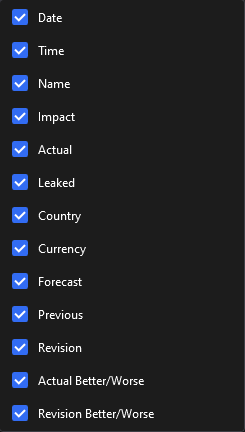
Access Column Selection Right-click on the column headers to open the column selection menu.
-
Choose Columns Check or uncheck boxes to show or hide specific columns.
-
Arrange Columns Drag and drop columns to rearrange their order according to your preference.
Manual Refresh
Section titled “Manual Refresh”To refresh the calendar:
-
Locate Refresh Button Find the refresh button (usually represented by a circular arrow icon).
-
Update Calendar Click the refresh button to load the latest economic events.
Event Filtering
Section titled “Event Filtering”Filtering allows you to narrow down the displayed events based on various criteria, making it easier to focus on the information that matters most to your trading strategy.
How to Filter Events
Section titled “How to Filter Events”-
Access Filter Options Locate the filter icon or button, typically found near the top of the calendar display.
-
Choose Filter Criteria Select from the available filter options, which may include:
- Date range
- Currency
- Impact level (low, medium, high)
- Event type
- Custom keywords
-
Apply Filters Click ‘Apply’ or a similar button to update the calendar view with your selected filters.
-
Clear Filters To return to the full calendar view, look for a ‘Clear Filters’ or ‘Reset’ option.
Advanced Filtering Tips
Section titled “Advanced Filtering Tips”- Use keyword filters to focus on specific economic indicators (e.g., “GDP”, “CPI”, “Employment”).
- Save frequently used filter combinations for quick access in future sessions.
- Experiment with different filter combinations to discover new insights about market-moving events.
Filtered View and AI Analysis
Section titled “Filtered View and AI Analysis”When using the prompt section with a filtered calendar view:
- The AI will analyze only the events currently displayed after applying your filters.
- This allows for more focused and relevant AI insights based on your specific interests.
Best Practices
Section titled “Best Practices”- Regular Checks: Make it a habit to check the calendar at the start of your trading session and before making significant trades.
- Customized Views: Set up different column configurations for different trading strategies or time zones.
- Prompt Experimentation: Try various prompts to extract different types of insights from the calendar data.
- Correlation Analysis: Use the AI to help identify correlations between economic events and specific market movements.
The Calendar tab is an indispensable tool for staying ahead of market-moving events. By effectively utilizing this feature, you can make more informed trading decisions based on a holistic view of both technical and fundamental factors.