
Options Window
Open the Options window
Section titled “Open the Options window”Open ChartGPT Options from the lower-right controls on your chart.
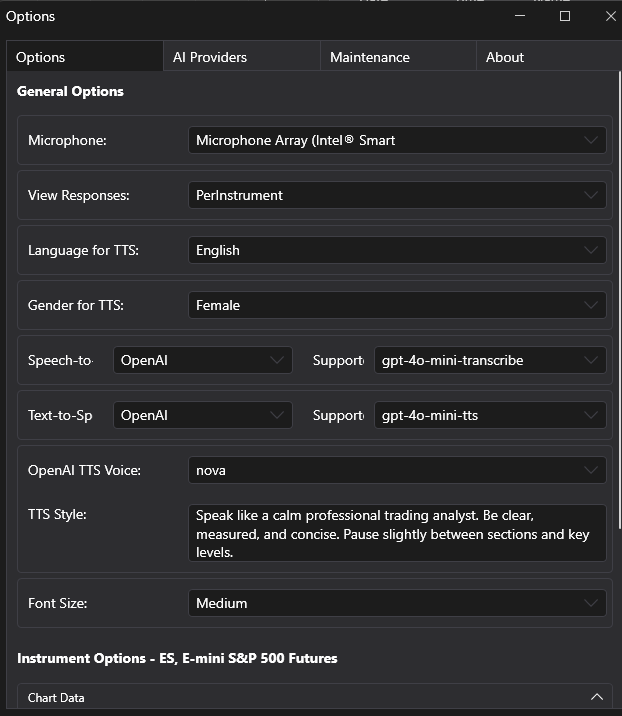
The current Options window is organized around these tabs:
- Options
- AI Providers
- Maintenance
- About
Older documentation may mention Announcements or Usage Log tabs. Those tabs are not part of the current bring-your-own-key workflow.
Options tab
Section titled “Options tab”
The Options tab controls local ChartGPT behavior. These settings affect the NinjaTrader add-on on your machine; they do not change your Trading Neural license or your provider account.
General options
Section titled “General options”- Microphone: Select the Windows microphone used for audio notes and speech workflows.
- View Responses: Choose whether responses are shown across all instruments or only for the current instrument.
- Language for TTS: Select the language for text-to-speech output.
- Gender for TTS: Select the preferred voice gender where the selected audio provider supports it.
- Speech-to-Text Provider: Select the provider used for audio transcription.
- Speech-to-Text Model: Select the transcription model for the chosen provider.
- Text-to-Speech Provider: Select the provider used to create spoken audio from responses.
- Text-to-Speech Model: Select the speech model for the chosen provider.
- Text-to-Speech Voice: Select the voice used for generated audio when supported.
- Font Size: Change the ChartGPT interface font size.
- Chat Message Width: Set a fixed message width to reduce expensive layout resizing for long messages.
Instrument options
Section titled “Instrument options”Instrument options apply to the current chart or instrument context.
- Number of Bars from Chart: Choose how many chart bars ChartGPT sends into chart-data workflows.
- Data Resolution: Choose the data resolution used by OHLCV, Volume, VWAP, Blend, and Chat data sources.
- Chat Message Width: Set the response width for that instrument context.
Changing some options can refresh the chart or reload the relevant ChartGPT surface.
AI Providers tab
Section titled “AI Providers tab”The AI Providers tab is the center of the BYOK workflow.
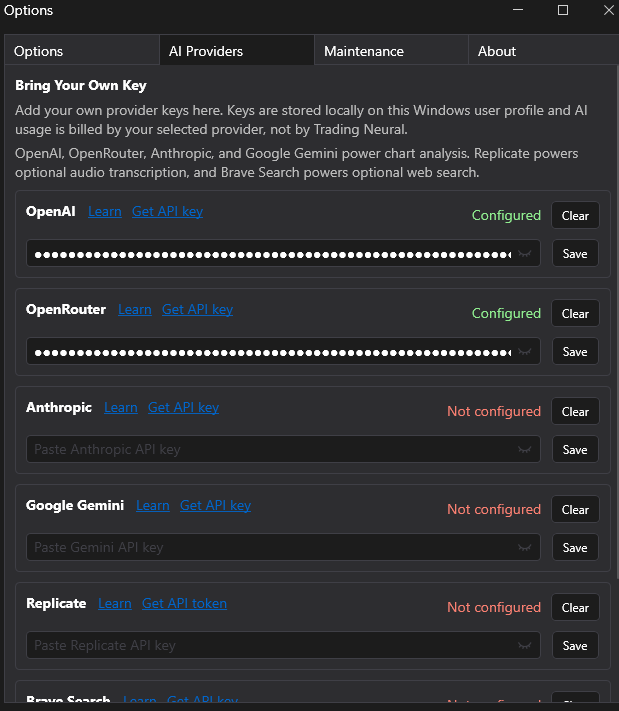
ChartGPT stores provider keys locally in your Windows user profile. Trading Neural does not bill you for model usage and does not manage your provider invoices.
Supported provider keys
Section titled “Supported provider keys”| Provider | Used for | Key page |
|---|---|---|
| OpenAI | text, vision, speech-to-text, text-to-speech | OpenAI API keys |
| OpenRouter | text and vision models routed through OpenRouter | OpenRouter API keys |
| Anthropic | Claude text and vision models | Anthropic API keys |
| Google Gemini | Gemini text and vision models | Google AI Studio API keys |
| Replicate | optional audio transcription workflows | Replicate API tokens |
| Brave Search | optional web search context | Brave Search API keys |
See AI Providers and Models for provider usage dashboards, billing responsibility, and model-selection guidance.
Save a provider key
Section titled “Save a provider key”-
Create or copy a key from your provider account.
-
Open Options > AI Providers in ChartGPT.
-
Paste the key into the matching provider field.
-
Click Save.
-
Check that the provider status changes from not configured to configured.
-
Return to a ChartGPT analysis tab and choose that provider from the Provider selector.
Clear a provider key
Section titled “Clear a provider key”Use Clear beside a provider when you want to remove the locally stored key from this Windows user profile. Clearing a key does not cancel the provider account; it only removes ChartGPT’s local access to that provider.
Advanced model visibility
Section titled “Advanced model visibility”Normally leave model visibility on Auto. Use Advanced Model Visibility only when:
- a provider exposes a model that ChartGPT hides
- a model appears in the wrong text or vision list
- you want to hide a model from ChartGPT’s model selectors
Provider model catalogs can change. If a model disappears or a new model appears, refresh the model list after saving the provider key.
Connection summary
Section titled “Connection summary”The connection summary helps you confirm which providers are configured. It is useful when a tab reports that an API key is missing or when a model list does not show what you expect.
Maintenance tab
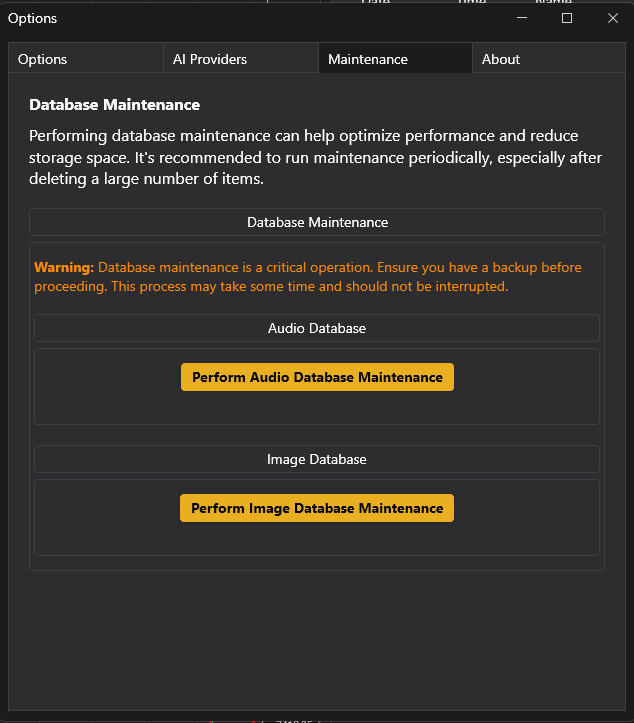
Section titled “Maintenance tab”The Maintenance tab performs local database maintenance for stored ChartGPT data such as audio and image records.
Database maintenance
Section titled “Database maintenance”Run maintenance after deleting a large number of records or if local storage has grown significantly.
- Perform Audio Database Maintenance: Optimizes the local audio database.
- Perform Image Database Maintenance: Optimizes the local image database.
About tab
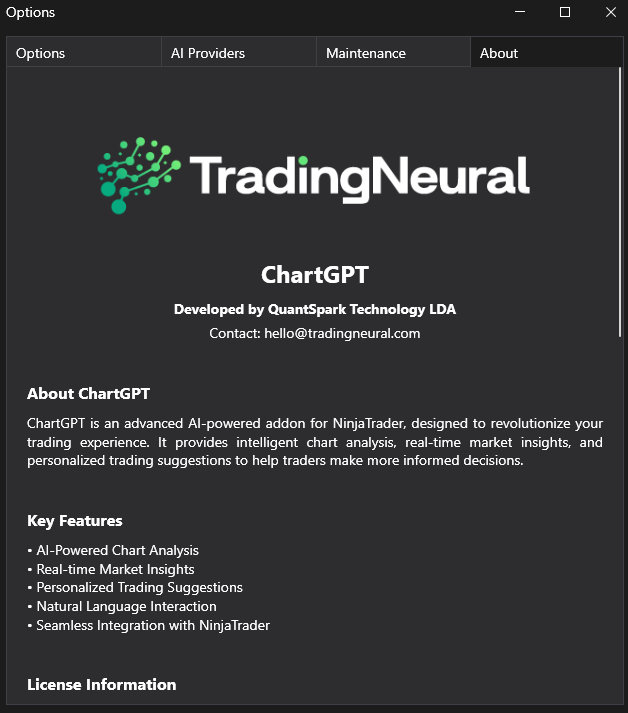
Section titled “About tab”The About tab contains product and version information. Check it when support asks for your installed ChartGPT version.
Common setup problems
Section titled “Common setup problems”- Provider shows as not configured: Save the matching provider key under AI Providers.
- A model is missing: Confirm the provider key is valid, then refresh the model list or check Advanced Model Visibility.
- Web search is disabled: Configure a Brave Search API key.
- Speech-to-text or text-to-speech does not work: Confirm the selected audio provider has a saved key and that the selected model supports the audio workflow.
- AI request fails after license login succeeds: Treat provider setup separately from license activation. Your TN key activates ChartGPT; your provider API key powers AI requests.